
Review happens on the account. Outreach happens on the campaign that comes out of that review.
You do not work one opportunity through a planner. You open the account, decide which pains are worth pursuing, and hand the account to outreach.
This guide follows the two pages you use every day: Sales → Funnel and Sales → Campaigns.
Table of contents
-
How an account moves
-
Where to find this in the app
-
Review accounts in the Funnel
-
The account briefing
-
Run outreach from Campaigns
-
Settings your admin configures
-
Need help?
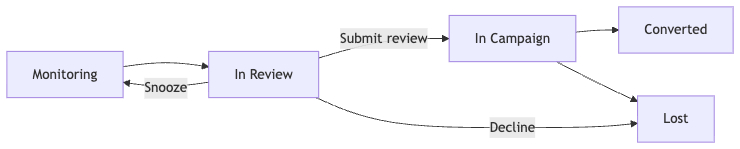
How an account moves
|
What you see |
What it means |
|---|---|
|
Monitoring |
Rembrandt is scoring the account. Nothing is waiting on you yet. |
|
In Review |
The account is in someone's briefing. A reviewer owns the next decision. |
|
In Campaign |
A campaign exists for this account. Outreach is being prepared or is live. |
|
In Sequence |
Outreach has been delivered on the campaign. |
|
Converted |
The campaign was marked won. |
|
Lost |
The account was declined, or the campaign was marked lost. |
A pain (an opportunity on that account) can also show a Rejected badge. That is not a separate phase. It means someone dismissed that pain's evidence. The account can still be in Monitoring, In Review, or In Campaign.
Where to find this in the app
|
Page |
Where |
What it is for |
|---|---|---|
|
Funnel |
Sales → Funnel |
Review the accounts waiting on you, see your territory, restore a rejected pain |
|
Campaigns |
Sales → Campaigns |
Run outreach on accounts you committed to |
|
Accounts |
Intelligence → Accounts |
Open an account, its pains, contacts, and feedback |
|
Briefing |
From a Funnel row, or Accounts → the account → briefing |
Decide what happens to the account |
|
Pipeline settings |
Settings → Organization → Sales → Pipeline |
Stages, roles, SLAs, and who runs outreach after approval (Owners and Admins) |
The old Qualification inbox and Execution Planner are gone. If a bookmark still says /qualification, Rembrandt sends you to Sales → Funnel.
Review accounts in the Funnel
Sales → Funnel is the review workspace. The page title is Funnel. The description reads: Review incoming accounts and track the opportunities you advance or reject.
Three tabs:
Awaiting me
Accounts assigned to you for review. One row is one account, not one pain.
Each row shows the account, its pain clusters, how many pains are in play, conviction, and urgency. If your organization has more than one review stage, you also see the current stage.
Click a row to open the account briefing.
If nothing is waiting: Your review queue is clear.
On multi-stage pipelines, a Waiting for confirm list sits under your queue. Those are briefings you already forwarded. Outreach starts after the next reviewer confirms.
Pipeline
Your territory, grouped by where each account sits: Monitoring, In Review, In Campaign, In Sequence, Converted, Lost. Converted and Lost start collapsed.
Click a row that has an open review to open the briefing. Click a row that already has an active campaign to go to that campaign.
If the list is empty: Your territory pipeline is empty.
Rejected Opportunities
This tab is the exception: it lists pains, not accounts. These are pains whose evidence was rejected.
Use Restore when that evidence should be considered again. Restoring a pain does not reopen a declined account.
The account briefing
The briefing is where you review the account and commit.
You can open it from Funnel, or from Intelligence → Accounts when a review is assigned to you. The drawer says: Review the opportunities and commit.
The header shows the account, the current Stage, and the Reviewer. If the review is not yours, the page is view only.
1. Pick the pains worth pursuing
The Opportunities card is labeled Pick the plays worth pursuing. Each card is a pain on this account.
For each pain you can:
-
Select it to take it into the campaign
-
Defer it to leave it out of this decision without rejecting the evidence
-
Reject… to dismiss the AI evidence for that pain (not the whole account)
A selected pain needs at least one evidence block before you can submit.
Rejecting a pain is for "the evidence is wrong." Closing the whole account as not a fit is Decline, in the account decision below.
2. Review the people on the account
Once a pain is selected, the briefing shows the people on the account for those pains. You can add contacts and mark a primary person per role. When you approve the account, that list is frozen onto the campaign.
Who sourcing looks for is configured as title families and search filters under Settings → Organization → Contacts. See ZoomInfo for how those settings are used.
3. Decide what happens to the account
The Account decision card is labeled Decide what happens to this account.
|
Action |
When to use it |
|---|---|
|
Claim |
Approve the account and run outreach yourself. You become the campaign executor. Hidden when your review role is already the executor role. |
|
Advance |
On a multi-stage pipeline: send the account to the next review stage. |
|
Approve |
On the final stage: hand the account to the executor and create the campaign. |
|
Snooze |
Set the account aside. It comes back for review after 30, 60, or 90 days. |
|
Decline |
Close the account as not a sales fit. It will not resurface on its own. You pick a reason (already in pipeline, timing, not a fit, competitor, budget, or other). |
On Claim, Approve, or a final-stage Advance you also pick the sequence the campaign should run. See Sequences and Copy for what a sequence contains.
If some pains were left untouched, you choose what happens to them: keep monitoring, dismiss for a while, or reject all.
On the final stage you can leave a handover note for the executor. When you advance to another reviewer, that note is review notes.
4. Submit review
The commit button is Submit review.
What you should see after a successful submit:
|
You chose |
Toast |
|---|---|
|
Claim |
Account claimed. |
|
Approve on the final stage |
Approved - campaign created. You can Open campaign. |
|
Advance to the next stage |
Advanced to the next stage name. |
|
Anything else |
Review submitted. |
Run outreach from Campaigns
Sales → Campaigns is the executor's queue. The page title is Campaigns. The description reads: Accounts handed off to you for outreach. Each campaign is one account you committed to.
A campaign is created when a reviewer Claims or Approves an account on the final review stage, with at least one selected pain and its evidence. Advancing to another stage does not create a campaign yet.
If the list is empty: No campaigns assigned to you.
The campaign page
Open a campaign to work the account.
Manage campaign (top of the page) is where you:
-
Pick or change the sequence (locked once outreach is live, except while the run is still a draft or has failed)
-
Set copy language
-
Change Owner and Executor
-
Pause SLA or Resume (before outreach starts)
-
Record the outcome: Mark won or Mark lost
-
Reopen campaign after it was closed
Won and lost are campaign outcomes. There is no "Mark executed" and no "Mark converted" on the opportunity.
Context & activity (side drawer) holds the pains and evidence frozen at hand-off, plus the activity log. You can add a pain or copy the context from here.
Prepare, draft, and deliver
Outreach on the campaign is three actions, in order:
-
Prepare briefing: build the message plan for the campaign
-
Draft copy: write the messages from that plan
-
Deliver: send the sequence to your connected sales tool. After the first delivery the button reads Deliver again
The campaign shows its own status as it moves: Draft, Building, Ready, Live, Done.
Contacts and messages are edited on this page. You do not go back to a five-step planner on the opportunity.
What the messages say comes from the sequence and your organization's copy rules, covered in Sequences and Copy.
Settings your admin configures
Owners and Admins set the review pipeline under Settings → Organization → Sales → Pipeline (page title: Sales Pipeline).
That screen covers:
-
The conviction score an account needs before it enters review
-
Review stages, who reviews each stage, and SLAs
-
Who runs outreach after the last approval (the executor) and the executor SLA
-
Who can act on someone else's review
-
How rejected pains can come back (resurfacing)
Each of those is covered in Review pipeline.
The same Sales settings group also holds Sequences and Copy guidance, which the briefing and the campaign both use. See Sequences and Copy.
For roles, members, and invites, see Organization.
Need help?
-
Signals and scoring: how pains and evidence are found
-
ZoomInfo: title families and search filters for contact sourcing
- Troubleshooting
-
In-app Help in the sidebar, or support@rembrandtagents.com